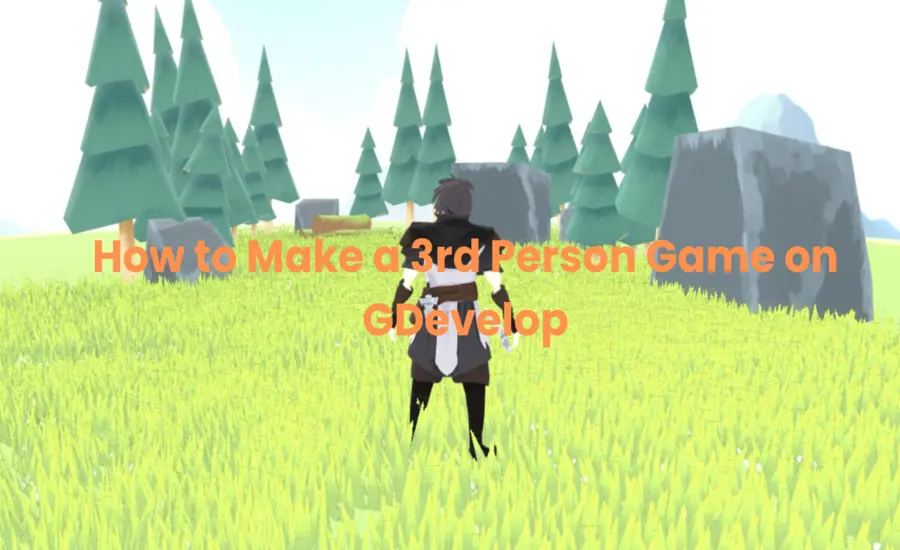
How to Make a 3rd Person Game on GDevelop: Complete Guide for 2025
Introduction
Creating a 3rd person game may seem like a challenge reserved for professional developers using complex engines like Unity or Unreal. However, GDevelop has evolved to make this accessible to everyone, even those with no coding experience. As of 2025, GDevelop offers robust 3D capabilities that let you build immersive third-person experiences with its intuitive, visual approach to game development.
This comprehensive guide will walk you through every step of creating a 3rd person game in GDevelop, from initial setup to final publication.
What Is a 3rd Person Game?
A third-person game shows the player character from an external viewpoint, typically from behind or above the character. This perspective allows players to see their character moving through the game world, unlike first-person games where players see through the character’s eyes. Popular examples include games like Fortnite, Tomb Raider, and Super Mario Odyssey.
The third-person perspective offers several advantages:
- Better spatial awareness of the environment
- Visible character animations and interactions
- A broader field of view of the surroundings
- More cinematic gameplay experience
Why Choose GDevelop?
GDevelop has evolved significantly since its inception as a 2D game engine. The latest versions now include impressive 3D capabilities that make it an excellent choice for creating third-person games, especially for beginners or solo developers.
Key Advantages of GDevelop:
- No-Code Development: Create complete games using visual events without writing a single line of code
- Free and Open-Source: Access all features without subscription fees or expensive licenses
- Cross-Platform: Export your games to Windows, macOS, Linux, Android, iOS, and web browsers
- Intuitive Interface: User-friendly design makes the learning curve much gentler than traditional engines
- Active Community: Access tutorials, assets, and support from a growing community of developers
- 3D Capabilities: Now supports 3D models, lighting, cameras, and physics for third-person games.
Essential Tools and Resources
Before starting your 3D game development journey, gather these necessities:
Required:
- GDevelop: Download the latest version from the official website.
- 3D Assets: Character models, environments, and objects (in .glb or .gltf format).
- Computer: Any modern PC or Mac with decent graphics capabilities.
Recommended Resources for Free Assets:
- Sketchfab: Thousands of free and premium 3D models.
- OpenGameArt: Free game assets, including 3D models.
- Kenney.nl: High-quality free game assets.
- Mixamo: Free animated 3D character models.
Step 1: Setting Up Your Project
Let’s begin by creating a new project in GDevelop:
- Launch GDevelop and click on “Create a new project.”
- Select “Blank project” (recommended for 3D games) rather than using templates
- Name your project something memorable
- Set the game resolution (1920×1080 for standard HD is recommended)
- Click “Create” to initialize your project.
Pro Tip: While you can use the Platformer template as a starting point, a blank project gives you more control over the 3D aspects of your game.
Step 2: Adding Your 3D Character
Your character will be the centerpiece of your third-person game. Here’s how to add one:
- In the Scene Editor, click “Add a new object.”
- Select “3D Model” from the object types.
- Browse and select your character file (.glb or .gltf format).
- Name your character object (e.g., “Player3D”).
- Position your character slightly above ground level (Y = 0.5 or higher) to prevent clipping issues.
Important: Make sure your 3D model includes animations for idle, walking, running, and jumping if you want to use these actions in your game.
Step 3: Creating the Game World
Next, build the environment where your character will explore:
For the Ground:
- Add another 3D object (choose “3D Box” for a simple flat terrain)
- Stretch it to create a wide ground plane
- Apply textures by adjusting the material properties
- Position it at Y = 0 to serve as your ground level
For Environment Objects:
- Add additional 3D models for trees, buildings, or obstacles.
- Position them around your scene to create an interesting landscape.
- Consider collision properties by adding appropriate hitboxes.
Pro Tip: Start with a small, contained area to test your mechanics before expanding to a larger world.
Step 4: Implementing the 3rd Person Camera
The camera is crucial for a good third-person experience. Set it up to follow your player with these steps:
- Add a Camera object to your scene
- Open the Events tab to create camera logic
- Add a new event with the condition: “Always” (to execute every frame)
- Add these actions to the event:
Set camera position to Player3D.X(), Player3D.Y() + 5, Player3D.Z() – 10
Set the camera rotation to look at the player object
Fine-Tuning the Camera:
- Adjust the Y-offset (5 in our example) to change the camera height
- Adjust the Z-offset (-10 in our example) to change the distance behind the player
- Add smoothing by using linear interpolation between the current and target positions
// Camera smoothing pseudocode (in GDevelop events)
Set variable TargetX to Player3D.X()
Set variable TargetY to Player3D.Y() + 5
Set variable TargetZ to Player3D.Z() – 10
Set Camera3D.X() to Camera3D.X() + (TargetX – Camera3D.X()) * 0.1
Set Camera3D.Y() to Camera3D.Y() + (TargetY – Camera3D.Y()) * 0.1
Set Camera3D.Z() to Camera3D.Z() + (TargetZ – Camera3D.Z()) * 0.1
Step 5: Setting Up Player Controls
Good controls are essential for any third-person game. Here’s how to set them up:
- Open the Events tab and create events for each movement direction:
Forward/Backward Movement:
If Key “W” is pressed
→ Apply force to Player3D in the forward direction (Z-axis)
If Key “S” is pressed
→ Apply force to Player3D in the backward direction (negative Z-axis)
Left/Right Rotation:
If Key “A” is pressed
→ Rotate Player3D to the left (counter-clockwise around Y-axis)
If Key “D” is pressed
→ Rotate Player3D to the right (clockwise around the Y-axis)
2. Set appropriate force amounts and rotation speeds based on your game’s needs
3. Test and adjust until movement feels responsive but not too fast
Advanced Option: For more natural movement, consider implementing acceleration and deceleration rather than constant forces.
Step 6: Adding Core Game Mechanics
Jumping Mechanics:
1. Create a new event for jumping:
If Key “Space” is pressed AND Player3D is on the ground
→ Apply upward force to Player3D (positive Y-axis)
→ Play the jump animation
2. Add gravity with:
Always
→ Apply downward force to Player3D (negative Y-axis)
3. Add ground detection using raycasting:
Create a raycast from Player3D.X(), Player3D.Y(), Player3D.Z() downward
If the raycast hits the ground within 0.1 distance
→ Set variable “IsOnGround” to 1
Else
→ Set variable “IsOnGround” to 0
Collision Detection:
- Add collision behaviors to your Player3D object
- Create events to handle collisions with environment objects
- Implement appropriate responses (stop movement, slide along surfaces, etc.)
Step 7: Polishing Your Game
Now that the core mechanics are in place, it’s time to add polish:
- Character Animations:
Create events to trigger different animations based on player state:
If Player3D is moving (Speed > 0)
→ Play “Run” animation
Else
→ Play “Idle” animation
If variable “IsOnGround” = 0
→ Play “Jump” animation
Sound Effects:
- Add audio for footsteps, jumping, landing, and environmental interactions.
- Trigger sounds based on player actions and environment interactions.
Visual Effects:
- Add particle effects for actions like jumping or landing.
- Implement lighting to enhance the atmosphere.
- Add environmental effects like fog or weather.
Step 8: Testing and Optimizing
Before finalizing your game, thoroughly test and optimize:
- Test on different devices to ensure consistent performance
- Check for rendering issues or graphical glitches
- Optimize 3D models by reducing polygon counts where possible
- Implement the level of detail (LOD) for distant objects
- Ask others to playtest and provide feedback on controls and camera behavior
Performance Tip: Keep the total polygon count under control, especially for web or mobile exports. Consider using simpler models for background elements.
Step 9: Exporting and Publishing
When you’re satisfied with your game, it’s time to share it with the world:
- Click on “File” and select “Export”
- Choose your target platform(s):
- Windows/macOS/Linux for desktop
- Android/iOS for mobile
- HTML5 for web browsers
- Configure export settings based on your chosen platform
- Generate the export files
- Test the exported game thoroughly before publishing
Publishing Platforms:
- itch.io: Great for indie games
- GameJolt: Community-focused platform
- Google Play: For Android games
- App Store: For iOS games
- Your website is using the HTML5 export
Advanced Features and Tips
- Gameplay Elements to Consider:
- Inventory System: Allow players to collect and use items
- Health and Energy: Implement status bars and management systems
- Combat Mechanics: Add fighting capabilities if appropriate for your game
- NPC Interactions: Create dialog systems and AI behaviors
- Quests/Missions: Give players goals and objectives
Technical Enhancements:
- Day/Night Cycle: Implement time progression with lighting changes
- Weather Effects: Add rain, snow, or other atmospheric conditions
- Mini-map: Help players navigate your world
- Save System: Allow players to save and resume progress
- Cutscenes: Create cinematic moments to enhance storytelling
Common Issues and Solutions
Camera Clipping Through Objects:
- Implement camera collision detection.
- Add raycasting to detect obstacles between the camera and the player.
- Adjust the camera position when obstacles are detected.
Character Sinking Into Ground:
- Check the collision box dimensions
- Adjust the Y-position of the character slightly above ground
- Verify physics settings for consistent behavior
Jerky Movement:
- Implement smoothing for both movement and rotation
- Use delta time for consistent movement speeds
- Consider adding acceleration/deceleration
Poor Performance:
- Reduce polygon count on models
- Optimize lighting and shadows
- Limit the number of simultaneous physics calculations
- Implement object pooling for frequently spawned objects
Conclusion
Creating a 3rd person game in GDevelop is not only possible but also surprisingly accessible thanks to the engine’s evolution and user-friendly approach. By following this guide, you’ve learned how to set up your project, implement core mechanics, and polish your game for distribution.
Remember that game development is an iterative process. Start small, test frequently, and gradually expand your game’s features. With practice and experimentation, you’ll create increasingly sophisticated third-person experiences that players will enjoy.
The best part of using GDevelop is that you can achieve professional results without writing a single line of code. This democratization of game development allows creators of all skill levels to bring their visions to life.