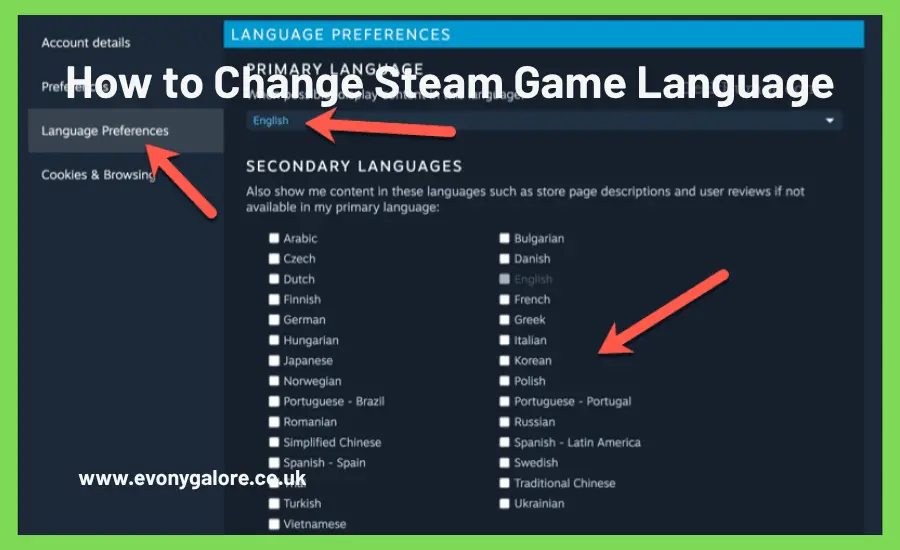
How to Change Steam Game Language: A Complete Guide for Gamers Worldwide
With the global popularity of gaming, people from different linguistic and cultural backgrounds are now able to connect through this medium. In order to cater to this diversity, Steam, the largest digital distribution platform for PC gaming, offers extensive language support for its vast collection of games. Whether you have moved to a new country, want to improve your foreign language skills while playing, or simply prefer your native tongue, knowing how to change the language on Steam is essential in today’s gaming landscape. This comprehensive guide covers all available options for adjusting language settings on Steam, resolving common issues, and helping you make the most of your gaming experience, no matter what language you choose.
Understanding Steam’s Language Architecture
Before diving into the practical steps of changing game languages, it’s important to understand how Steam’s language system works. Steam actually operates with two distinct language settings that many users confuse: the Steam client interface language and individual game languages. The Steam client language controls the platform’s menus, store pages, community features, and navigation elements. Individual game languages, however, are separate settings that determine the in-game text, subtitles, voice acting, and menu systems within each specific title. This distinction is important because changing your Steam client language does not automatically update the language of your installed games, and vice versa. Each game in your library maintains its own language configuration, which gives you tremendous flexibility to play different titles in different languages according to your preferences.
Furthermore, not all games support the same languages. While major AAA titles typically offer extensive localization covering ten to twenty languages or more, smaller indie games might only support a handful of languages or even just English. Some games provide full localization, including translated text and dubbed voice acting, while others offer only subtitles in additional languages with original voice work. Understanding these nuances helps set realistic expectations when attempting to change your game language settings.
Method 1: Changing Language Through Game Properties
The most straightforward and reliable method for changing a Steam game’s language involves accessing the game’s properties directly through your Steam library. This approach works for the vast majority of games and gives you precise control over language settings on a per-game basis. To begin this process, launch your Steam client and navigate to your library by clicking the “Library” tab at the top of the Steam window. Once in your library, locate the game for which you want to change the language. You can scroll through your collection or use the search bar to quickly find the specific title.
After locating your desired game, right-click on its title in the left sidebar to bring up a contextual menu with various options. From this menu, select “Properties,” which will open a new window containing all the configurable settings for that particular game. In older versions of Steam, you would then click on the “Language” tab in the left panel of the Properties window. However, in current Steam versions, the interface has been streamlined, and you’ll find language settings under the “General” section. Look for a dropdown menu labeled “Language” which displays the currently selected language for that game.
Click on this dropdown menu to reveal all available language options for the game. The languages shown here represent every localization that the game developer has created and made available through Steam. Select your preferred language from this list, and Steam will automatically begin downloading any necessary language files. Depending on the game and the language you’ve selected, this download could range from a few megabytes for text-only changes to several gigabytes if the language pack includes fully dubbed voice acting. Once the download completes, close the Properties window and launch the game. The game should now display in your selected language, including menus, subtitles, interface elements, and potentially voice acting if available.
Method 2: Adjusting Language Through In-Game Settings
Some games offer an additional layer of language customization through their own in-game settings menus, operating independently of Steam’s language configuration system. This method is particularly common in games from major publishers who want to provide players with granular control over different language elements. For instance, certain titles allow you to set text and subtitles to one language while keeping voice acting in another language, enabling players to enjoy the original voice performances while reading subtitles in their preferred language. This flexibility proves especially valuable for players learning new languages or those who prefer the emotional delivery of the original voice cast.
To access these settings, launch the game and navigate to its options or settings menu, typically found in the main menu before starting gameplay or accessible by pressing the Escape key during gameplay. Look for sections labeled “Options,” “Settings,” “Audio,” “Language,” or “Accessibility,” as language controls can appear in various locations depending on the game’s menu structure. Once you find the language settings, you may discover separate options for interface language, subtitle language, and voice-over language. Make your selections according to your preferences, apply the changes, and the game will implement them immediately or after restarting.
It’s worth noting that some games require a complete restart to fully apply language changes, while others can switch languages on the fly. If you don’t immediately see changes after adjusting in-game language settings, try exiting the game completely and relaunching it. Additionally, some games save language preferences locally on your computer, meaning these settings persist even if you reinstall the game or play it on another computer using the same Steam account, while other games store preferences in the cloud through Steam Cloud synchronization.
Method 3: Changing Steam Client Language
While changing the Steam client language doesn’t automatically modify individual game languages, adjusting the client language can improve your overall Steam experience and ensure that store pages, community features, and platform navigation appear in your preferred language. This becomes particularly useful when browsing for new games, reading reviews, or interacting with the Steam community. The process for changing your Steam client language is straightforward and takes only a few moments.
Begin by opening your Steam client and clicking on “Steam” in the top-left corner of the window to access the main Steam menu. From the dropdown menu that appears, select “Settings,” which will open the Steam settings interface. In the left sidebar of the Settings window, click on “Interface” to access interface-related options. Near the top of the Interface settings page, you’ll find a dropdown menu labeled “Select the language you wish Steam to use,” showing your currently selected interface language. Click this dropdown to reveal all available languages for the Steam client, which includes dozens of options covering most major languages worldwide.
Select your preferred language from this extensive list, and Steam will prompt you to restart the client to apply the changes. Click “Restart Steam” and allow the application to close and reopen automatically. When Steam relaunches, the entire interface, including menus, buttons, store pages, community sections, and all text elements, will display in your newly selected language. This change affects only the Steam platform itself and doesn’t modify the language settings of your installed games, which must be changed individually using the methods described earlier.
Configuration Language Detailed
To help you understand the different aspects of Steam language configuration, here’s a comprehensive breakdown of where each language setting applies and how to access it:
| Language Setting Type | What It Affects | How to Access | Restart Required | Affects All Games |
| Steam Client Language | Steam interface, store, community, menus | Steam → Settings → Interface | Yes (Steam restart) | No |
| Game Language (Properties) | Individual game text, subtitles, UI, voice | Library → Right-click game → Properties → Language | No (automatic download) | No (per-game setting) |
| In-Game Language Settings | Game-specific language options, separate voice/text | In-game Options/Settings menu | Varies by game | No (per-game setting) |
| Download Region | Doesn’t affect language, but affects download speed | Steam → Settings → Downloads → Download Region | No | N/A |
Troubleshooting Common Language Change Issues
Despite Steam’s generally user-friendly language management system, users occasionally encounter problems when attempting to change game languages. Understanding these common issues and their solutions can save you significant frustration and help you quickly resolve language-related problems. One of the most frequent issues occurs when a desired language doesn’t appear in the dropdown menu for a specific game. This situation arises because the game developer hasn’t created or published localization for that language. Steam can only offer languages that developers have specifically programmed into their games. If your preferred language isn’t available, you have limited options: you can contact the developer through Steam’s community forums to request that language be added in future updates, or you can look for community-created translation mods, though these aren’t officially supported and may not work with all game versions.
Another common problem involves language files failing to download or getting corrupted during the download process. When you change a game’s language, Steam needs to download the associated language pack, which sometimes fails due to connection issues, disk space limitations, or temporary server problems. If you’ve changed the language setting but the game still appears in the old language, try verifying the integrity of the game files. You can do this by right-clicking the game in your library, selecting “Properties,” navigating to the “Installed Files” tab, and clicking “Verify integrity of game files.” This process checks all game files against Steam’s servers and redownloads any missing or corrupted files, including language packs.
Some users report that after changing language settings, the game displays mixed languages with some elements in the new language and others in the old language. This inconsistency typically occurs in games that store language preferences both in Steam’s configuration and in local game files. To resolve this, try changing the language setting through both the Steam Properties method and the in-game settings menu, ensuring both match your desired language. Additionally, some games cache certain text elements, and you may need to completely exit and restart the game multiple times before all language elements update properly.
Regional restrictions can also affect language availability. Certain games are published with region-specific versions that lock language options based on where you purchased or activated the game. While relatively uncommon, this restriction exists primarily for licensing reasons related to voice acting, translation contracts, or regional distribution agreements. If you suspect regional locking is preventing language access, check the game’s store page and community discussions for information about region-specific versions. Unfortunately, overcoming regional language restrictions typically requires contacting the publisher directly or, in rare cases, purchasing a different regional version of the game.
Advanced Tips for Optimizing Your Multilingual Gaming Experience
For players who regularly switch between languages or manage games in multiple languages, several advanced strategies can enhance their experience and streamline the language-changing process. Creating Steam Collections organized by language provides a convenient way to track which games you play in which languages. You can create a collection called “English Games,” another called “Spanish Games,” and so forth, making it easy to remember your language preferences for different titles. This organizational approach proves especially valuable if you’re using gaming as a language learning tool and want to maintain consistency in which games you play in your target language versus your native language.
When using Steam on multiple computers, be aware that game language settings are typically stored locally on each machine rather than synchronized through Steam Cloud. This means if you change a game’s language on your desktop computer, that same game might still display in the original language when you play it on your laptop. You’ll need to adjust language settings on each device independently. However, many modern games sync in-game language preferences through Steam Cloud if the game supports cloud saves, so the behavior varies depending on each specific title’s implementation.
For language learners specifically, Steam offers unique opportunities to practice reading, listening comprehension, and vocabulary acquisition through gaming. Consider starting with games that have relatively simple language and clear context clues, such as puzzle games, simulation games, or titles you’ve already completed in your native language. Visual novels and story-driven adventure games provide excellent reading practice with manageable vocabulary, while multiplayer games with voice chat can offer speaking and listening practice with native speakers. Many learners find that switching voice acting to their target language while keeping subtitles in their native language provides an effective learning bridge, allowing them to hear authentic pronunciation and speech patterns while having translation support when needed.
Mobile Steam App Language Considerations
The Steam mobile app for iOS and Android devices follows similar language principles to the desktop client, but with some important differences worth noting. The mobile app’s interface language can be changed independently of your desktop Steam client, giving you flexibility if you use your mobile device in a different language context than your computer. To change the Steam mobile app language, open the app, tap the menu icon, select “Settings,” and look for language options. However, the mobile app doesn’t allow you to change individual game language settings for games in your library, as this functionality is only available through the full Steam client on Windows, macOS, or Linux.
For Steam Deck users, language management works identically to the desktop Steam client since Steam Deck runs a full version of Steam OS. You can access game properties and change languages exactly as you would on a desktop computer. The Steam Deck’s portable nature makes it particularly appealing for travelers who might want to switch game languages when moving between countries or language environments, and the process remains consistent with the standard Steam experience across all platforms.
Conclusion:
The ability to change Steam game language represents more than just a technical feature; it reflects gaming’s evolution into a truly global medium that transcends linguistic barriers and connects players across cultures. Whether you’re an expatriate seeking entertainment in your native language, a polyglot who enjoys experiencing games as their creators originally intended, or a language learner leveraging interactive entertainment for educational purposes, Steam’s flexible language options empower you to customize your gaming experience according to your unique needs and preferences. By mastering the various methods for changing game languages through Steam Properties, in-game settings, and client interface adjustments, you gain complete control over your linguistic gaming environment. Remember that language availability varies significantly between titles, with AAA productions typically offering extensive localization while smaller indie games may support limited languages.
When you encounter issues, systematic troubleshooting through file verification, checking both Steam and in-game settings, and ensuring you have adequate disk space for language packs will resolve most problems quickly. As the gaming industry continues expanding globally and developers increasingly recognize the importance of localization, we can expect even more comprehensive language support in future titles. Steam’s infrastructure already supports this multilingual future, providing the tools you need to enjoy games in whatever language enhances your experience most. Take advantage of these features to explore games in new languages, maintain connections with your linguistic heritage, or simply optimize your understanding and enjoyment of the incredible stories, worlds, and experiences that modern games offer. The power to choose your gaming language puts you in control of how you experience interactive entertainment, making every adventure truly your own.