How to Refund a Game on Steam: Complete Guide to Getting Your Money Back
The digital gaming landscape has transformed dramatically over the past decade, with Steam remaining the dominant platform for PC gamers worldwide. With thousands of games available at your fingertips, inevitably, sometimes a purchase doesn’t meet your expectations. Whether you’ve encountered technical issues, discovered the gameplay isn’t what you anticipated, or simply changed your mind, Steam’s refund policy provides consumers with a safety net. Understanding how to refund a game on Steam is essential knowledge for every user of the platform, as it empowers you to make purchasing decisions with confidence while protecting your wallet from buyer’s remorse.
Steam’s refund system represents a significant commitment to customer satisfaction in the digital distribution space. Unlike physical game purchases, where returns were often impossible once the packaging was opened, Valve Corporation has implemented a comprehensive refund policy that balances consumer protection with developer interests. This guide will walk you through every aspect of the Steam refund process, from eligibility requirements to troubleshooting common issues, ensuring you can successfully reclaim your funds when necessary.
Understanding Steam’s Refund Policy and Eligibility Requirements
Before initiating a refund request, it’s crucial to understand the specific conditions that determine whether your purchase qualifies for a refund. Steam’s refund policy is built around two primary criteria that work in conjunction: the time elapsed since purchase and the amount of playtime accumulated. According to Valve’s official policy, you can request a refund for any game purchased through Steam if you submit your request within fourteen days of purchase and have played the game for less than two hours. Both conditions must be satisfied simultaneously for automatic approval consideration.
The fourteen-day window begins from the moment you complete your purchase transaction, not from when you first launch the game. This distinction is important because it means you could theoretically purchase a game, wait several days before playing it, and still have fewer days remaining in your refund window. The two-hour playtime restriction is measured by Steam’s tracking system, which monitors how long the game application remains running on your system. This includes time spent in menus, loading screens, and any portion of the game experience, not just active gameplay moments.
However, Steam’s refund system isn’t entirely rigid. Valve acknowledges that exceptional circumstances may warrant refunds outside these standard parameters. If you’ve experienced significant technical problems that prevented you from playing the game properly, if a game was purchased accidentally, or if the game description was misleading about features or content, you may still receive consideration for a refund even if you’ve exceeded the standard limits. The key is providing a detailed explanation when submitting your request. Valve reviews these cases individually, and while approval isn’t guaranteed, many users have successfully obtained refunds in legitimate exceptional situations.
Pre-purchased games receive special treatment under Steam’s refund policy. If you pre-order a game and it hasn’t been released yet, you can request a refund at any time before the release date. Once the game releases, the standard fourteen-day and two-hour playtime restrictions apply, but the fourteen-day period begins on the game’s release date rather than your purchase date. This policy protects consumers who pre-order games months in advance, only to discover upon release that the final product differs significantly from promotional materials or fails to meet quality expectations.
Step-by-Step Process: How to Request a Steam Game Refund
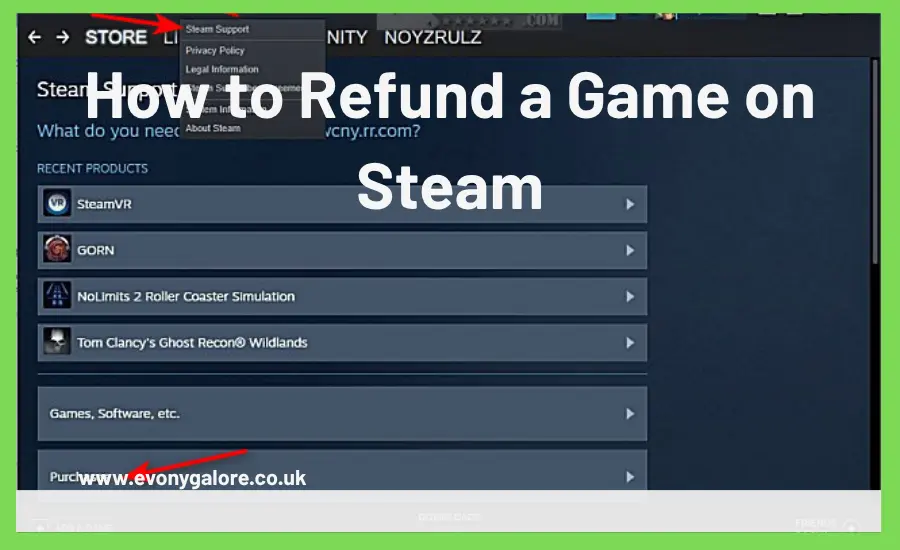
Requesting a refund on Steam is a straightforward process that can be completed entirely through the platform’s website or desktop application. The first step is logging into your Steam account using your credentials. Once logged in, navigate to the “Help” section, which can be accessed from the top menu bar on the Steam website or through the help menu in the Steam client application. This section serves as the central hub for all customer support issues, including refund requests.
Within the Help section, you’ll find a comprehensive support system. Click on “Purchases” to access purchase-related support options. Steam will then display your recent purchase history, showing games and other content you’ve bought within the refund-eligible timeframe. Locate the specific game for which you want to request a refund and click on it to proceed. If you have a lengthy purchase history, you can use the search function to quickly find the game by typing its title.
After selecting the game, Steam presents several support options. Choose “I would like a refund” from the list of available options. This action opens the refund request form, where you’ll need to provide specific information about why you’re requesting the refund. The form includes a dropdown menu with various reason categories, such as “The game doesn’t run on my computer,” “It’s not what I expected,” “I purchased by accident,” or “Other.” Selecting the most accurate reason helps Steam process your request more efficiently and contributes to improving its service based on common customer issues.
The form also includes a text field where you can provide additional details about your refund request. While this field isn’t always mandatory for standard refund requests that fall within the automatic approval criteria, providing context can be beneficial, especially if your situation is unusual. If you’re requesting a refund because of technical issues, describe the specific problems you encountered. If the game’s performance differed from what was advertised, explain how it fell short of expectations. Clear, concise communication increases the likelihood of approval, particularly for borderline cases.
After completing the form, you must select your preferred refund method. Steam offers two primary options: refunding the money to your Steam Wallet or returning it to your original payment method. Refunds to your Steam Wallet are processed almost immediately upon approval, making the funds available for future purchases within minutes. Refunds to your original payment method take longer, typically between seven and fourteen business days, depending on your financial institution’s processing times. Credit cards and PayPal usually process faster than bank transfers.
Once you’ve submitted your refund request, Steam generates a support ticket and provides you with a ticket number for reference. You’ll receive an email confirmation acknowledging your request. For most refund requests that meet the standard criteria, approval is automatic and occurs within twenty-four hours. If your request requires manual review because it falls outside standard parameters, the process may take up to seven business days. You can check the status of your refund request at any time by returning to the Help section and viewing your support tickets.
Special Circumstances and Advanced Refund Scenarios
While the standard refund process covers most situations, certain purchase types and scenarios require additional consideration. Understanding these special circumstances ensures you approach refund requests appropriately and set realistic expectations for outcomes. Downloadable content, commonly known as DLC, operates under slightly different refund rules than standalone games. DLC can be refunded following the same fourteen-day and two-hour criteria, but the playtime consideration applies to the base game, not the DLC content specifically. If you’ve played the base game for more than two hours after purchasing DLC, refunding that DLC becomes more complicated, though not necessarily impossible if you can demonstrate the DLC itself caused issues.
In-app purchases and microtransactions present unique challenges for refund requests. Steam’s policy states that these purchases can be refunded within forty-eight hours of purchase, provided the in-game items haven’t been consumed, modified, or transferred. This restriction acknowledges that many in-game currencies and items can be immediately used or traded, making refunds after consumption problematic. If you accidentally purchased in-game currency or items, immediate action is essential. The longer you wait, the less likely approval becomes, especially if the game’s activity logs show you used the purchased content.
Game bundles require strategic consideration when requesting refunds. If you purchase a bundle containing multiple games, Steam’s policy allows you to refund the entire bundle if the total playtime across all games in the bundle doesn’t exceed two hours and the purchase occurred within fourteen days. However, once you exceed two hours of combined playtime across bundle games, refunding becomes significantly more difficult. Individual games within a bundle cannot typically be refunded separately, as the bundle represents a single transaction. If you want to keep some games from a bundle, requesting a bundle refund isn’t advisable.
Common Issues and Troubleshooting Solutions
Despite Steam’s relatively streamlined refund system, users occasionally encounter problems or confusion during the process. One frequent issue involves refund requests being denied despite seemingly meeting the standard criteria. This situation often occurs when users misunderstand how playtime is calculated. Steam counts all the time the game executable is running, including time spent paused in menus, idling on the title screen, or troubleshooting technical issues. Background processes associated with the game may also contribute to tracked playtime even when you’re not actively playing.
Another common complication arises when users have previously refunded numerous games. While Steam doesn’t publicly specify an exact limit, the system flags accounts that request frequent refunds. Valve has stated they reserve the right to decline refunds if they detect abuse of the refund system. If your account has requested multiple refunds in a short period, additional scrutiny applies to new requests. This doesn’t mean legitimate refund requests will be denied, but it emphasizes the importance of providing detailed explanations when requesting refunds, especially if you have a history of returns.
Technical difficulties accessing the refund system occasionally frustrate users. If the Help section isn’t loading properly, try clearing your browser cache or switching between the Steam client and web browser. Sometimes, regional restrictions or payment processing complications can delay refund processing. If your refund is approved but funds don’t appear in your Steam Wallet or bank account within the expected timeframe, contact Steam Support directly through a support ticket. Payment processing delays don’t typically indicate problems with the refund itself; they usually reflect normal banking or payment processor timelines.
Refund Alternatives and Best Practices for Steam Purchases
| Alternative Options | Description | Best Used When | Processing Time |
| Steam Wallet Refund | Funds returned to the Steam account balance | Planning to purchase other games soon | Immediate (within hours) |
| Original Payment Method | Funds returned to credit card, PayPal, etc. | No immediate Steam purchases planned | 7-14 business days |
| Family Sharing | Share the game with family members instead | Uncertain about the game, but family is interested | Immediate setup |
| Gift to Friend | Convert the unwanted game into a gift | Know someone who wants the game | Requires a support ticket |
| Wait for Updates | Keep the game pending developer fixes | Technical issues may be patched | Varies by developer |
Understanding refund alternatives empowers you to make informed decisions that might better serve your interests than a refund. Steam’s Family Sharing feature allows you to share your game library with up to five accounts on up to ten devices. If you’re unsure about a game but family members express interest, keeping the game and sharing it might provide more value than a refund. Similarly, monitoring developer update schedules can be worthwhile if you’re experiencing technical issues. Many games receive patches shortly after release that resolve early bugs and performance problems.
Practicing smart purchasing habits minimizes the need for refunds altogether. Take advantage of Steam’s extensive information resources before buying games. Read user reviews carefully, paying attention to recent reviews that reflect the game’s current state rather than outdated impressions. Watch gameplay videos and streams to understand what the game actually offers beyond marketing materials. Utilize Steam’s wishlist feature to track games you’re interested in, which often results in email notifications about sales and updates. Patience frequently rewards gamers with better prices and more stable game versions.
The Steam demo ecosystem provides valuable opportunities to test games before purchasing. Many developers offer free demos that showcase representative gameplay segments. Playing demos gives you hands-on experience that screenshots and trailers cannot match, helping you make confident purchasing decisions. Additionally, participating in free weekend promotions allows you to try full games temporarily without any financial commitment. Steam regularly features different games for limited-time free play periods, particularly for multiplayer titles where developers want to expand their player base.
Understanding Refund Processing Times and What to Expect
Once your refund request receives approval, understanding the subsequent processing timeline helps manage expectations and avoid unnecessary concern. Refunds to your Steam Wallet are virtually instantaneous from a user’s perspective. The moment Steam approves your refund and selects Steam Wallet as the destination, the funds appear in your account balance, typically within one to two hours at most. This speed makes Steam Wallet refunds attractive for users who plan to purchase other games immediately, effectively exchanging one title for another without removing money from the Steam ecosystem.
Refunds to original payment methods involve more complex processing that extends beyond Steam’s control. After Steam approves your refund and initiates the payment reversal, the transaction must pass through multiple systems. First, Steam’s payment processing partner receives the refund instruction and processes it according to their protocols. Then, the transaction travels to your financial institution, where it enters their processing queue alongside countless other transactions. Credit card companies typically reflect refunds within three to seven business days, while PayPal refunds often appear within the same timeframe. Bank transfer refunds frequently take the longest, sometimes requiring up to fourteen business days.
International transactions can experience additional delays due to currency conversion processes and international banking protocols. If you purchased a game using a non-US currency, the refund must be converted back to your local currency at current exchange rates. Small variations in the refunded amount compared to your original purchase price are normal and reflect exchange rate fluctuations between purchase and refund dates. These differences are usually minimal, typically amounting to a few cents in most currencies, but they’re worth noting to avoid confusion when reviewing your bank statements.
Conclusion:
Successfully navigating Steam’s refund system requires understanding the platform’s policies, acting within specified timeframes, and communicating effectively when exceptional circumstances apply. The fourteen-day and two-hour standard criteria provide clear guidelines for most situations, but remember that legitimate technical issues or misleading product descriptions may warrant consideration even outside these parameters. Always provide detailed, honest explanations when requesting refunds, especially for cases requiring manual review.
The Steam refund policy represents consumer-friendly progress in digital game distribution, but it functions best when used responsibly rather than as a free game rental service. Excessive refund requests damage your account’s standing and may result in declined refunds for legitimate issues. By researching games thoroughly before purchase, taking advantage of demos and free weekends, and understanding your refund rights, you can confidently explore Steam’s vast catalog while maintaining the safety net of refunds when genuinely necessary.
Remember that the gaming community benefits when refund systems exist and function properly. Developers receive valuable feedback through refund reasons, helping them identify and address common problems. Honest refund requests contribute to this feedback loop, ultimately improving game quality across the platform. Whether you’re refunding due to technical incompatibility, unmet expectations, or an accidental purchase, following the proper procedures ensures you can recover your funds while maintaining a positive relationship with the platform that hosts your digital gaming library.